How to set up recurring break reminders on a Mac
Choose between a repeatable Clock timer, weekday alarms, and a dedicated break app—with practical setup steps and clear limits for each option.
- Clock timers can be repeated manually; weekday alarms follow fixed times.
- Use a dedicated break app when you need automatic intervals or break-specific controls.
Choose the kind of reminder you need
For a single screen-break reminder, use Clock on your Mac. For breaks at fixed times each workday, set repeating alarms. For an interval that keeps running throughout your work session with break-specific controls, consider a dedicated break reminder app.
These options solve different problems. “Remind me in 20 minutes,” “remind me at 11 every weekday,” and “keep prompting me while I work” are three different requests. Choosing the right one saves you from building an elaborate schedule when a single timer would do.
The steps below follow Apple’s current Mac documentation, checked September 13, 2026. Labels can vary by macOS version. We make Pausebar; we include the built-in options because you may not need to install anything.
Option 1: use a Clock timer
Open Clock, select Timers, enter your interval, and click Start. For example, use 20 minutes if you are trying a distance-break cue. When the timer ends, take your break. Apple documents an Options menu on the notification with Repeat to run the timer again.
This is a manually repeatable timer. You still choose to repeat it; do not assume it becomes an unattended, all-day break cycle. Decide whether to restart after your pause so your next countdown begins when you return.
Apple also notes that the countdown continues when you switch apps or your Mac sleeps. It measures elapsed time, so do not interpret it as a measure of uninterrupted screen work. See Apple’s Clock timer instructions for the controls available on your version.
Try this for one work session before buying software. If remembering to restart is easy and the alert suits you, it may be enough. If you routinely forget the restart, that is a concrete reason to consider an automatic interval tool.
Option 2: schedule weekday alarms
In Clock, open Alarms and add an alarm. Set a time, select the days under Repeat, give it a useful label, choose a sound, and save. For example, an 11:00 weekday alarm can remind you to leave the desk before lunch. Add another time only if you need it.
A repeating alarm follows the clock rather than your work session. An 11:00 alarm stays at 11:00 whether you started work at 08:00 or 10:55. That makes it useful for a predictable daily routine, but different from a countdown that begins when you sit down.
These steps are based on Apple’s alarm guide. Start with one alarm and check its behavior on your Mac before relying on several. Keep the label specific: “leave the desk” is clearer than “wellness.”
Option 3: use a dedicated break app
A dedicated app becomes useful when you want the next interval handled for you, a distinct break screen, or controls for interruptions and postponement. Before choosing one, decide which of these you need. Our Mac break-app comparison offers a starting point; confirm current product details before purchasing.
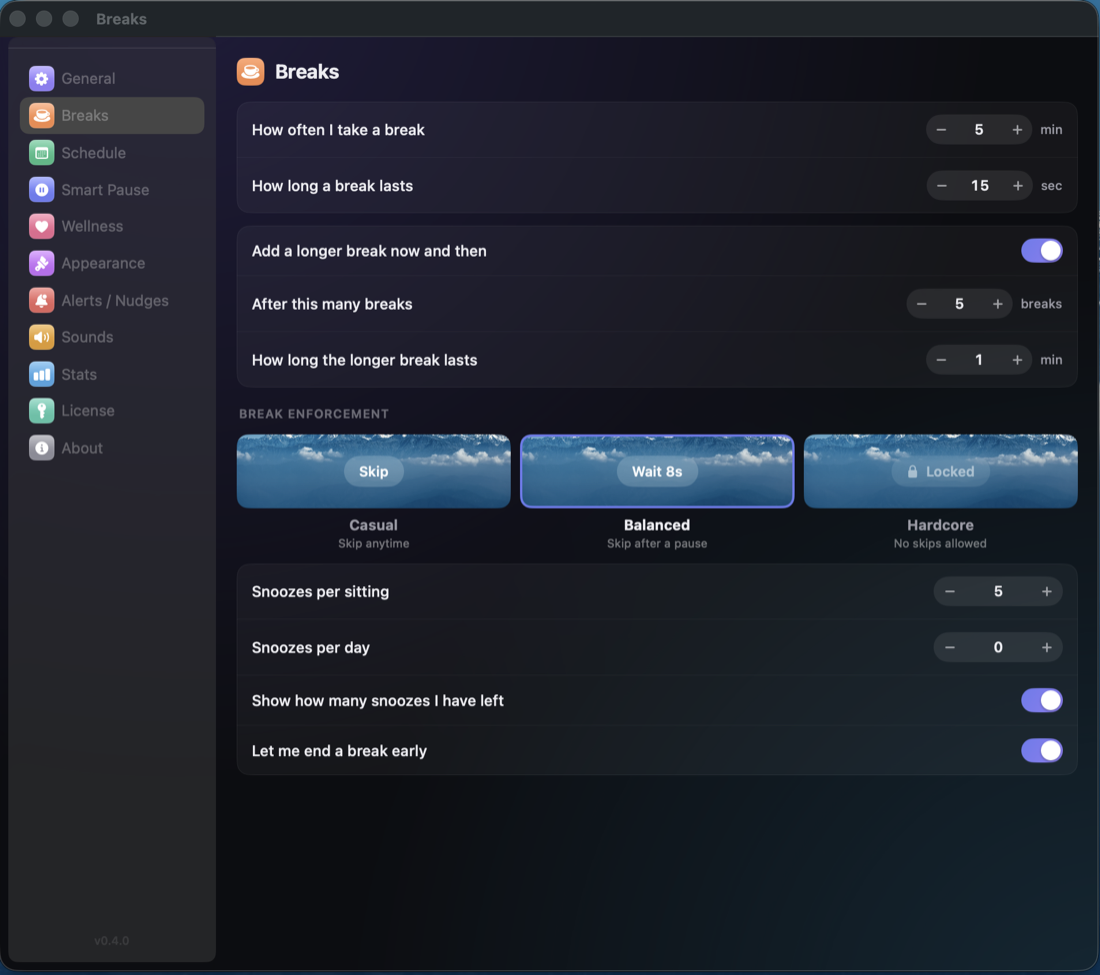
For Pausebar, begin by opening its settings and reviewing the break interval and duration. Then review Smart Pause and enable the signals relevant to your work. Set snooze and skip limits deliberately rather than immediately choosing the strictest setup.
A concrete first setup: choose a short break interval of 20 minutes and a duration of 20 seconds if you want to try the distance-break cue. Treat these as an example, not a prescription. Choose where the reminder appears and keep snooze available while you learn how it fits your day. In Smart Pause, enable only the activities that should hold that cue.
Check before relying on it: note your chosen interval, let a reminder appear, complete the break, and confirm the next countdown starts. Then check a call or fullscreen app that you selected. If the timer keeps waiting after that activity ends, inspect the remaining hold reason; do not add more alarms to compensate.
Use one ordinary work session to check the result. Observe a reminder, take the break, and check the next countdown. Then try a real situation you expect the enabled Smart Pause settings to handle. This is a personal setup check, not an assumption that detection covers every app or every call.
Pausebar’s existing settings screenshot shows the kind of break controls to review. The appearance may differ from your installed version.
Check that the reminder leads to a break
Once your reminder is set, choose what you will do when it appears. A short look into the distance and a longer movement break serve different purposes. Read our 20-20-20 guide if you want the background for distance breaks.
If you keep closing the prompt, do not immediately add another alarm. Our guide to skipped breaks helps distinguish a timing problem from an unclear action or a reminder you barely notice.
The simplest useful setup is the one that reliably gets you away from the task for the pause you intended. Start there, and add controls only when your own workday reveals a need.
Can I repeat a timer on a Mac?
Yes. Apple documents Repeat in the Options menu of a completed Clock timer notification. That is a manual repeat action, not an automatically repeating work-and-break schedule.
What is the difference between an alarm and a break interval?
An alarm runs at a chosen time of day, optionally on selected weekdays. A break interval counts a duration. A dedicated break app can add break-specific scheduling and controls; behavior depends on the app and settings.
- The best break reminder apps for Mac in 2026
An honest guide to LookAway, DeskRest, Time Out, Stretchly, BreakTimer — and Pausebar — including which one to actually pick.
- Why you keep skipping screen breaks—and how to make them easier to take
A practical guide to reminders you keep dismissing: change the timing, make the next action clear, and build a break routine you can actually use.